
Import your supporters
You can import once we've told you uploads are open for your charity.
Foundry asks your supporters for Gift Aid declarations, so the first step is to bring them in. You upload a file, match its columns, check what will happen, then import. Nothing is saved until you confirm.
Before you start
- Only bring in supporters whose Gift Aid status is unknown. Leave out anyone who already has a declaration, or who has told you they don't pay UK tax.
- Leave out anyone who has asked not to be contacted (including Fundraising Preference Service requests), anyone who has died, and anyone who has moved away with no new address. You'll be asked to confirm this before you import.
- Only include an email address for supporters you're allowed to email, usually people who've agreed to hear from your charity by email. Your own consent records decide this, not Foundry. The column is "Email (opted in to email)".
- Each supporter needs your supporter ID and a surname. Your supporter ID is the record number or constituent ID from your database: any number that never changes for that person. It's how Foundry knows someone is already here: import the same person again and their details update. If your records don't have one, ask us before you import.
- Organisations can't make a Gift Aid declaration, so leave them out. Give each person their own row (not "Mr and Mrs").
- Your file: a CSV (a spreadsheet saved as CSV; in Excel, File > Save As > CSV UTF-8), up to 10 MB and 50,000 supporters, with your column names in the first row. More than 50,000? Split it into files of up to 50,000 and import each. Foundry keeps the file's name with the import, so give it a plain name (for example "supporters-october.csv"), not anyone's name. Any layout works. Or start from our template (on the Import page, "Download the template"), whose columns already match.
Step 1: Upload
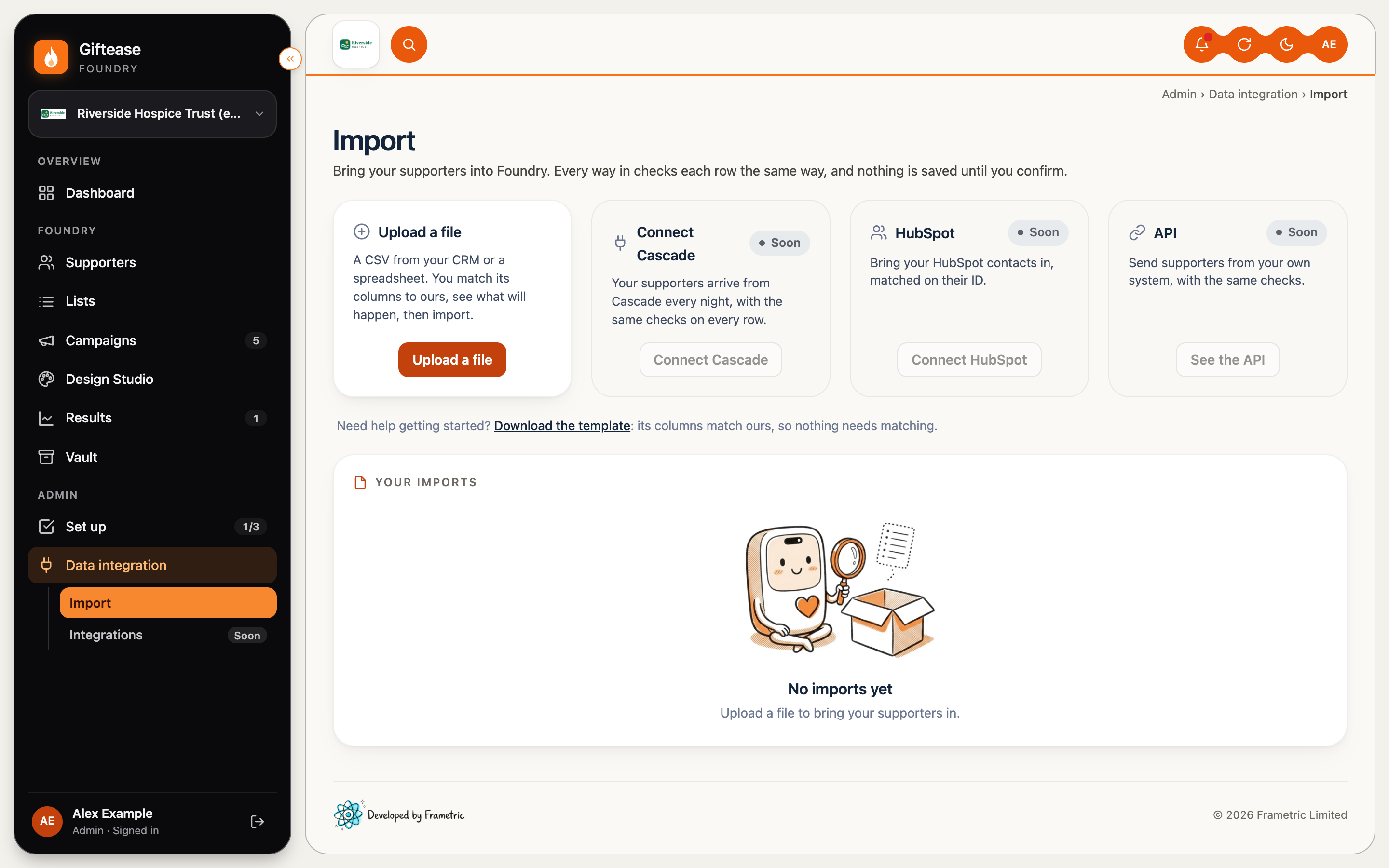
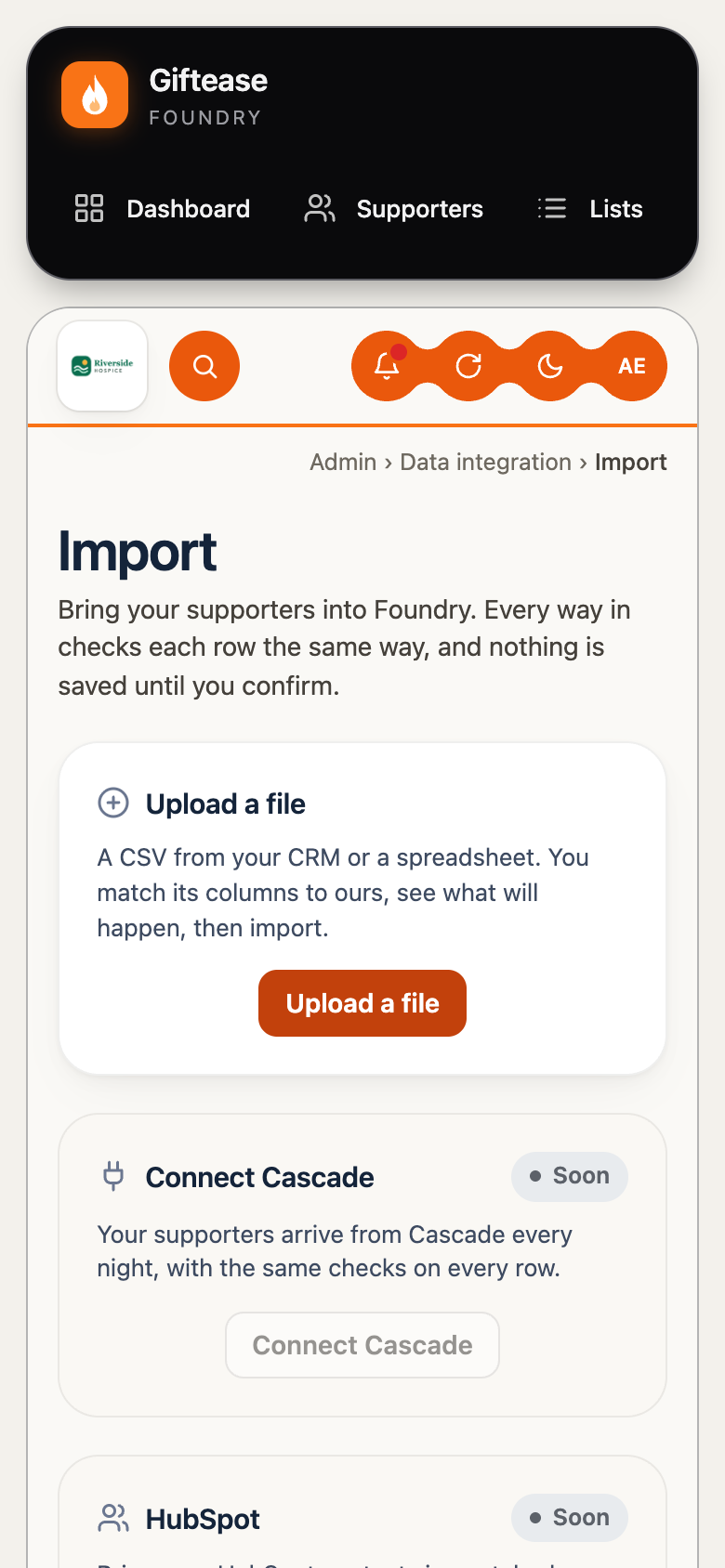
Go to Data integration > Import and choose Upload a file. On a computer, Data integration is in the left menu under Admin. On a phone, swipe the menu row to the left: Data integration is the last item. Drop your CSV in, or choose it, then Next: match columns.
Step 2: Match your columns
Foundry matches what it can and shows a sample of each column. For any it couldn't match, choose where it goes, or Don't import. Only the columns you match are kept; everything else in the file is ignored and never stored. Supporter ID and Surname are needed. Match an email column only for supporters you're allowed to email (see Before you start). Then Next: check.
Step 3: Check your file
You'll see what will happen before anything is saved: new supporters, ones already here (with or without changes), and rows held back.
- Choose what happens to supporters already here: update them (empty cells never wipe what we hold), or only add new ones.
- Held back rows won't be imported. Each group says what's wrong and how to fix it, for example a postcode that isn't a UK postcode, or a missing surname. Download the held-back rows, fix them in your file, and import that file again.
- Foundry also tells you if anyone will import but can't be asked in a campaign yet: a campaign needs their address (first line, town and postcode) and the year of their first gift (so the declaration covers the right past gifts), by letter or by email. Add them to your file and import it again.
Then Next: import.
Step 4: Import
- Tick Also save these supporters as a list if you want them ready for a campaign, and give the list a name you'll recognise.
- Set the date your money figures (such as each supporter's donations total) were correct: usually the date you exported the file.
- Tick the two confirmations: that you've removed people who asked not to be contacted, who have died or who moved with no new address; and that you have the right to give Giftease these details to manage Gift Aid declarations for you, and your privacy notice tells supporters you use service providers for this.
- Choose the Import button (it shows how many, for example "Import 41 supporters"). Foundry checks every row once more, then shows what it imported, with Open the list and See your supporters.
Good to know
- Held-back rows aren't kept. Download them at the Check step, or fix them in the file on your computer.
- You can import again at any time: same IDs update, new IDs add.
Stuck? Email solutions@gift-ease.co.uk and our team will help.